


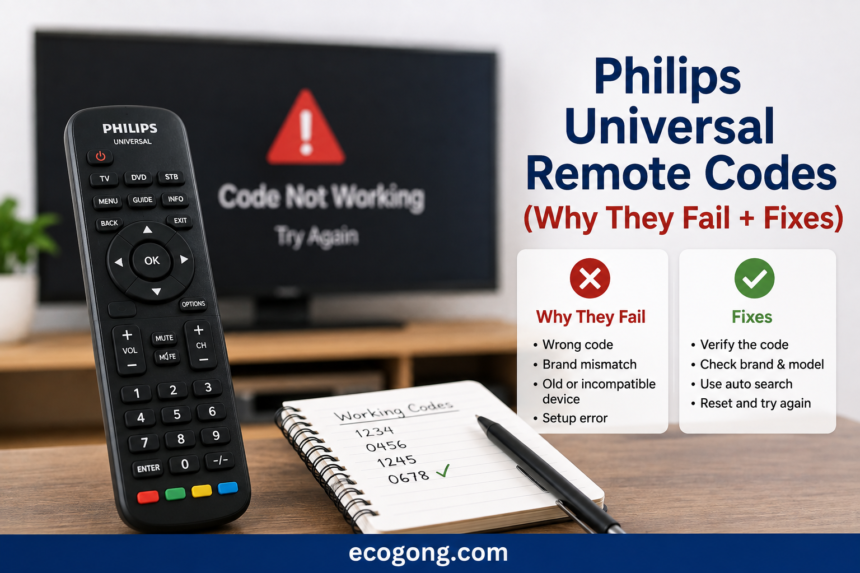
Philips universal remote codes are comes to short numbers, like 3 or 4 digits. They tune your remote to your TV brand.
And Enter the right code and your remote can turn the TV on, change the volume and switch channels. Enter the wrong one and nothing happens. Your TV just ignores it.
Many failed codes aren’t really wrong codes. also Weak batteries or standing too far away cause the same issues.
Philips Universal Remote Codes (Why They Fail + Fixes)
I’ve set up Philips universal remotes for two rental units, my parents TV and my own place. Here something you never hear: those Philips universal remote codes usually don’t work instantly. That’s simply the way it goes.
A lot of guides hand you a collection of codes and consider it done. Not this one. I will guide you step-by-step what to do when the codes refuse to work because, honestly, that’s the point most quit and simply purchase a replacement remote.
Why Most Code Lists Don’t Solve the Problem
I spent a lot of time trying to crack this. The code you enter isn’t really about your TV’s brand. It matches the specific signal chip inside your TV.
TV makers enjoy changing things around, changing these chips from year to year or model to model. Samsung, for one, has used all sorts of different chips over the last ten years.
That’s why those code lists give you five to six options for each brand. If the first code doesn’t work, just go down the list. Your TV most likely has a chip from a different batch older or newer, that’s all.
How to Set Up a Philips Universal Remote, Step by Step
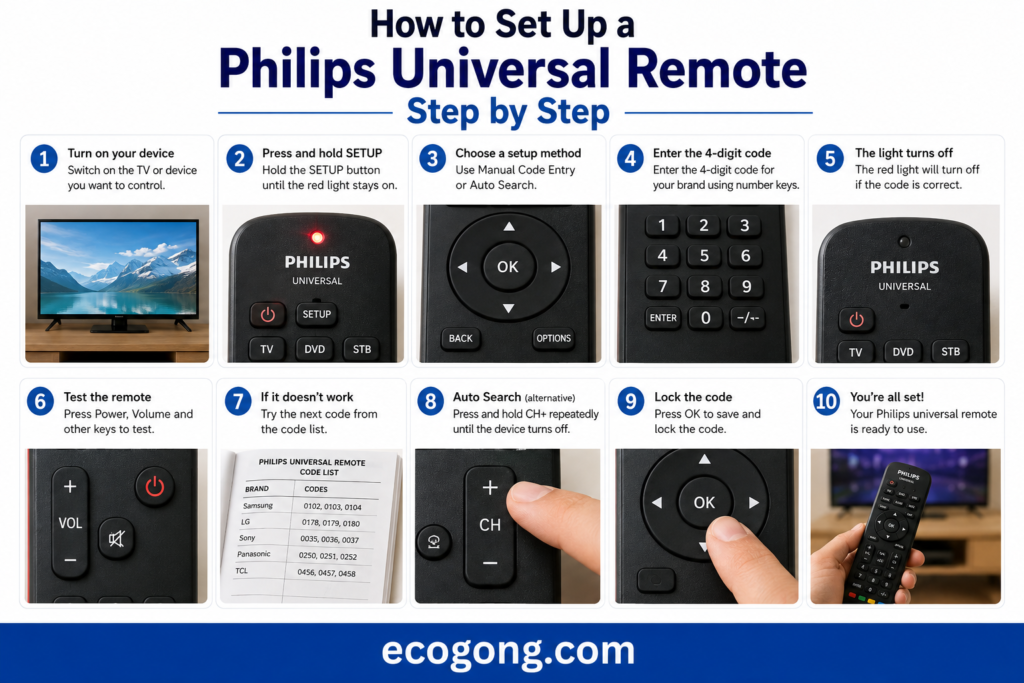
This below you check manual entry method. Use it when you already know your TV brand.
- Turn on the TV. Sit about 6 feet away with a clear line to the screen.
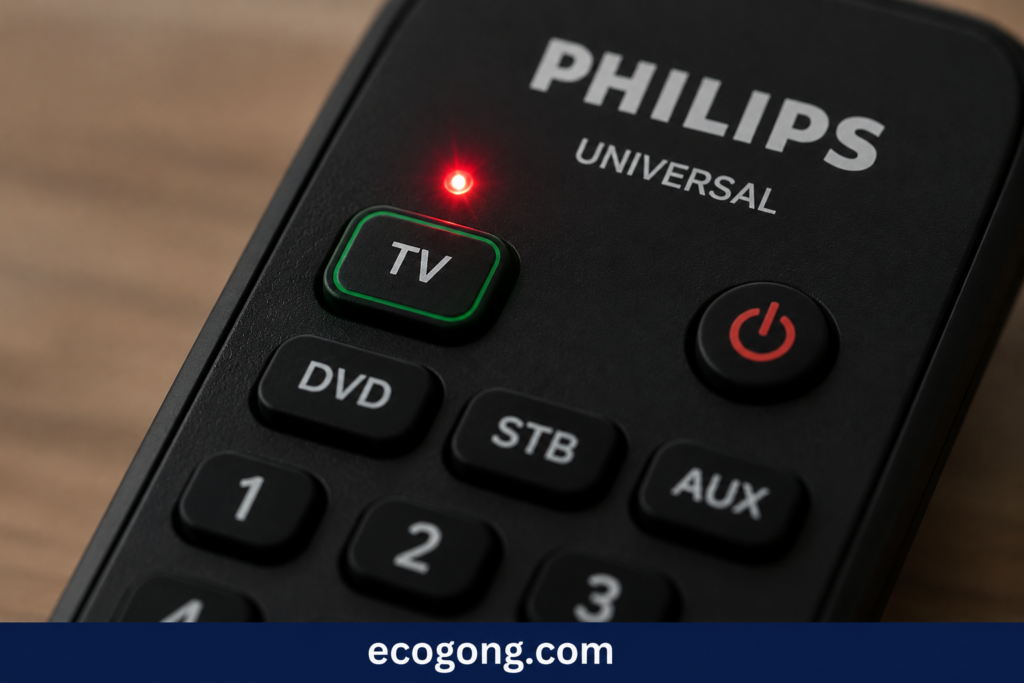
- Hold down the TV button Hold down the button on your remote until you see the light blink twice. Then release it.
- Type in a 3 or 4 digit code from the list for your brand below.
- Watch the light. If you see two blinks after entering the last digit, the remote accepted the code.
- Press Power. If the TV shuts off, you’re done.
- Test volume, channel, and mute before you call it finished.
Don’t only test the power button. I have programmed remotes previously that could turn the TV on and off but wouldn’t change the volume at all. Sometimes the code only covers some of the TV’s functions. Always go over each button you need.
If nothing happens after step 5, go back to step 3. Try the next code on the list that is best.
Philips Universal Remote Codes by Brand
Here is check Philips universal remote codes list 4 digit, organized by brand. Try them from top to bottom. many people find a match within the first three tries.
Samsung
- 0178
- 0463
- 0623
- 0764
- 1421
- 1451
Newer Samsung sets from 2020 and up usually respond to 0178 or 1451 first.
LG
- 0463
- 0146
- 0009
- 1194
- 0178
- 0673
Vizio
- 0178
- 0464
- 1936
- 0864
- 0035
- 1091
Searching for Philips universal remote codes vizio? you can Start with 0178 and 1936. These two cover many SmartCast models from 2019 onward.
Sony
- 0463
- 0019
- 0764
- 0812
- 1867
Roku TV
- 3823
- 3273
- 3623
- 3018
Quick reality check here. “Roku TV” not a manufacturer. It is operating system that TCL, Hisense, Sharp and others license and install inside their own hardware.
If the Roku specific codes not work, try the code list for whatever brand appears on the TV bezel instead.
Hisense
- 0864
- 0464
- 1936
- 0035
- 3823 (for Hisense sets running Roku’s software)
Insignia
- 3823
- 1958
- 0864
- 3273
Insignia is Best Buy’s house brand. Most Insignia TVs run either Amazon Fire TV or Roku OS underneath. If one code set fails completely, then try the other platform codes too.
Onn
- 3823
- 3018
- 3273
- 1958
Onn is Walmart’s house brand. many every current Onn TV runs Roku OS, which explains why these codes overlap so much with the Roku TV list above.
Setting Up Without a Code
Lost the manual? and Don’t recognize your remote model? Skip straight to auto search. This is the real answer to “Philips universal remote setup without code.”
- Turn the TV on.
- Hold the TV button until the light blinks twice.
- Press and release Power.
- The remote cycles through every stored code automatically, sending a power signal every second or two.
- The instant the TV turns off, press Enter or OK. That locks in the working code.
- Test volume, channel and input to confirm everything works.
This method takes long time, usually 2 to 5 minutes of watching the screen closely. But it skips the guesswork. You not need to know your TV’s exact brand or model, which makes it a solid choice for hand me down TVs and rentals.
Why a Code Sometimes “Half Works”
Most articles skip over this, but it’s important to know: a single TV brand often uses different remote control chipsets in its various models.
So, you might find a code that lets you turn the TV on and adjust the volume, but then the input or menu buttons don’t work at all.
Don’t just accept it if a few buttons are missing. Try the next code on the list. In my experience, it’s usually the second or third code that unlocks all the functions. The first one just covers the basics.
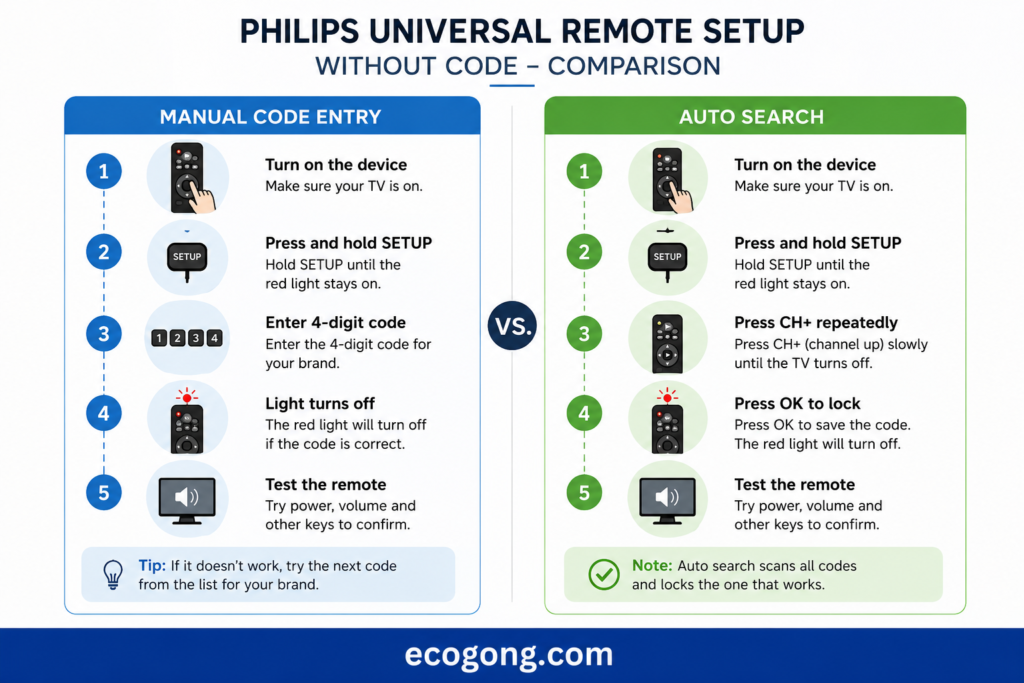
Comparison: Manual Entry vs. Auto Search
| Method | Best For | Time | Do You Need the Code? |
|---|---|---|---|
| Manual code entry | You know the TV brand | 1-2 minutes | Yes |
| Auto search | Unknown brand, lost manual, rebranded TV | 2-5 minutes | No |
Know your brand? Start with manual entry. It’s fast when it works. Stuck after four tries? Stop guessing. Switch to auto search and let the remote find the match on its own.
Mistakes That Look Like a Wrong Code
Check these things before you start blaming the code.
- First off, look at the batteries. If they are weak or failing, the remote sends a weak signal that just feels like a bad code. Swap in fresh batteries before you do anything else.
- Are you standing too far away? For setup, stick within 6 to 8 feet. Step back more than that, and the signal drops off fast.
- Make sure you are hitting the right device button. Philips remotes love to split things up—TV, DVD, cable all get their own button. If you hold the wrong one, no code will work, no matter how many times you try.
- Watch for that double blink. If the light doesn’t blink twice when you finish entering the code, the remote didn’t accept it. Go back and start over.
- Don’t just test the Power button. Just because the TV turns on doesn’t mean every key works. Hit a few different buttons so you know it’s really set up.
- Finally, don’t trust what’s printed on the box. Brands like Roku, Onn, and Insignia sometimes use hardware from another manufacturer. The code in the manual might not match your actual device.
Real World Tips From Actually Doing This
Here are a few tricks that save time trust me, I’ve done this far too many times.
- First, write down the working code where it’s easily accessible. Place a sticky note right inside the battery compartment. When the remote resets after the batteries die, you won’t have to hunt for the code all over again.
- Always try the newest code first. Code lists usually go by release date, so odds are, if your television isn’t outdated, the right code’s up top.
- For store brand TVs, just jump straight to auto-search. Don’t waste time guessing who actually made your Onn or Insignia TV. Let the remote figure it out. Guessing wastes even more time.
- Make sure nothing blocks the path between the remote and the TV. IR signals require a clear view—look for the sensor, usually a tiny dark strip at the lower edge of the screen.
- If you experienced a power outage, re-pair your remote. Some TVs reset their IR pairing after sitting unplugged, so if the remote suddenly stops working, it probably just needs to be set up again, not new batteries.
Where the Philips Universal Remote Manual Lives
Now, Every Philips universal remote manual includes the full brand code list and the exact remote model number.
Lost the paper copy? Flip the remote over. Check the label inside the battery compartment for like “SRP2019” or “CL035.”
Also Search using that exact model number. Code lists genuinely differ between Philips remote models, so match the list to your specific remote.
FAQs
What is a Philips universal remote codes? It is a short number that matches your remote signal to your TV’s internal chip family, this use for remote can send commands your TV understands.
How do I set up a Philips universal remote without knowing the code? Use auto search. Hold the TV button until it blinks twice, and press Power then watch the screen closely and press Enter the second it turns off.
Why did my code work for power but not volume? Some TV chip families only partially match a single code. Try the next code on the brand list instead of settling for partial control.
Are all Roku TVs the same brand? No. Roku is software running on TVs made by different manufacturers, including TCL, Hisense and Sharp. Try the actual manufacturer codes if Roku-specific ones fail.
Will a wrong code damage my TV? No. A wrong code just means the TV not respond. Try as many codes as you need.
How many tries does it usually take to find the right code? many people find a working code within 2 to 3 attempts per brand. Store brand and Roku based TVs sometimes take a bit longer.
Do Philips universal remote codes work the same across every remote model? Not. Different Philips remote series carry slightly different code lists. Match the list to your exact remote model when you can.
Why did my remote stop working after a power outage? Some TVs reset their IR pairing after sitting unplugged for a while. also Run the setup process again instead of assuming the remote broke.
Final Word
Philips universal remote codes matter, but they are not the real reason people give up on a Philips universal remote setup. The best reason is not knowing why a code “failed” in the first place.
Make sure your batteries are good and you’re within range before you start blaming the code. Try a few buttons not just power to see what works. Still no luck? Stop guessing. Just run the auto search. It’ll do the heavy lifting and find the right match, no tech details needed.
When you finally get it working, write the code down where you can find it. Trust me, when the batteries die when you need it quickly, you’ll be happy you did.